


What You'll Need
The Strategy: Young kids (ages 5–7) rarely engage for more than 10 minutes alone. View this as a co-creation sprint. You are the "Project Manager," and they are the "Creative Director."
- The App: ScratchJr (Free on iPad/Android). Note: There is still no official web version for Jr—stick to the tablet for the best "drag and drop" experience.
- The Setup: 15–20 minutes of focused time.
- The "Detective" Mindset: Blocks might not snap perfectly, or the cat might walk the wrong way. Celebrate "Debugging" as detective work. This builds resilience—the #1 skill for the future.
Understanding Scratch vs. ScratchJr: Insights from Parents and Educators
It's entirely normal to feel frustrated when navigating these platforms for the first time. Many parents have shared similar experiences:
- The Vibe: Completely icon-based. No reading required.
- The Goal: Grasping "Cause and Effect" (e.g., If I touch the cat, the ball hops).
- Parent Insight: It’s a tablet-first experience, perfect for little hands and developing fine motor skills.
- The Vibe: Text-based blocks. Reading is a must.
- The Goal: Complex logic, variables, and "if-then" statements.
- Parent Insight: It's web-based and opens the door to game design. If your child is easily overwhelmed by too many options, stick with Jr. for a few more months.
The Official ScratchJr Book— Parents swear by this for offline screen-free activities that mirror the coding logic. Available on Amazon
Dive In
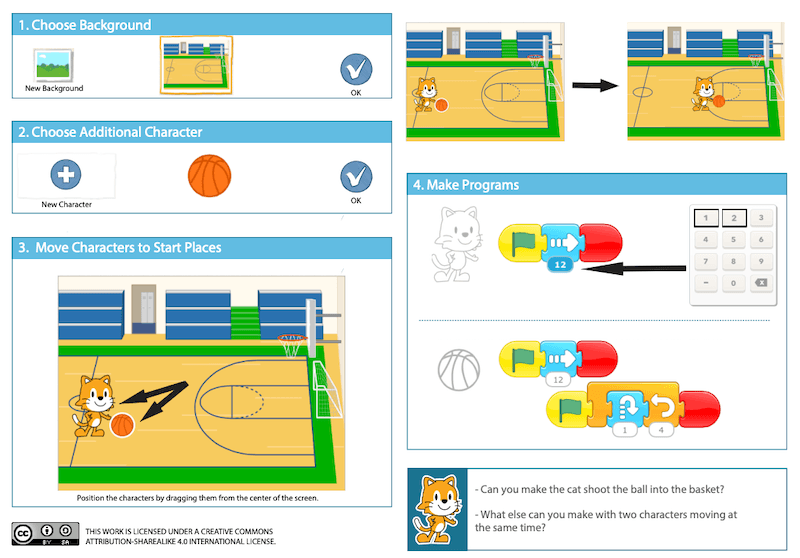
Step 1: Setting the Scene
- Tap the "+" to start a new project.
- Tap the Background icon (the mountain) and select the Gym.
- Real-World Lesson: Ask your child, "Where do we play basketball?" This teaches Context—in AI and coding, the "Environment" defines the rules.
Step 2: Add Your All-Stars
- Tap the "+" under the cat to add a character. Scroll until you find the Basketball.
- Positioning: Drag the Cat to the far left and the Ball to the center.
- Tip: Use the "Shrink" block (purple) if the ball looks like a giant boulder!
Step 3: Code the "Trigger" (The Cat)
- Tap the Cat icon at the bottom.
- Drag these blocks:
Yellow Flag➔Blue Arrow (Right)➔ Set number to10. - The Lesson: This is Linear Logic. If A happens, then B follows.
Step 4: The "Magic" (The Ball)
- Tap the Basketball icon. This is the hardest part for kids, so help them find the "Start on Bump" block (Yellow block with two figures touching).
- The Sequence:
Start on Bump➔Blue Up Arrow➔Purple Hop. - Real-World Application: Tell your child: "This is just like Alexa or Siri. They wait for a 'Trigger' (Hey Siri) before they move. The ball is waiting for the 'Trigger' (The Cat) to touch it!"
Step 5: The Debugging Lab (The "Detective" Phase)
- Ball doesn't move? Make sure the Cat actually touches the ball. If not, increase the Cat's "Move Right" number.
- Ball goes off-screen? Decrease the "Up" number.
- The "Why": Debugging is where the real learning happens. Ask: "Why did the ball ignore the cat?"
The "Ethics & Physics" Talk
Remind your child: "In ScratchJr, we can make a ball fly or shrink, but in the real world, gravity stays the same." This helps them distinguish between Animation (Storytelling) and Physics (Reality)—a vital distinction as they encounter more AI-generated content.

Derivatives & startup experience across 3 continents, including China. Elementary school mom to one very active kid. LSE MSc.
%20(300%20x%20250%20px)%20(1).avif)
-min.avif)